
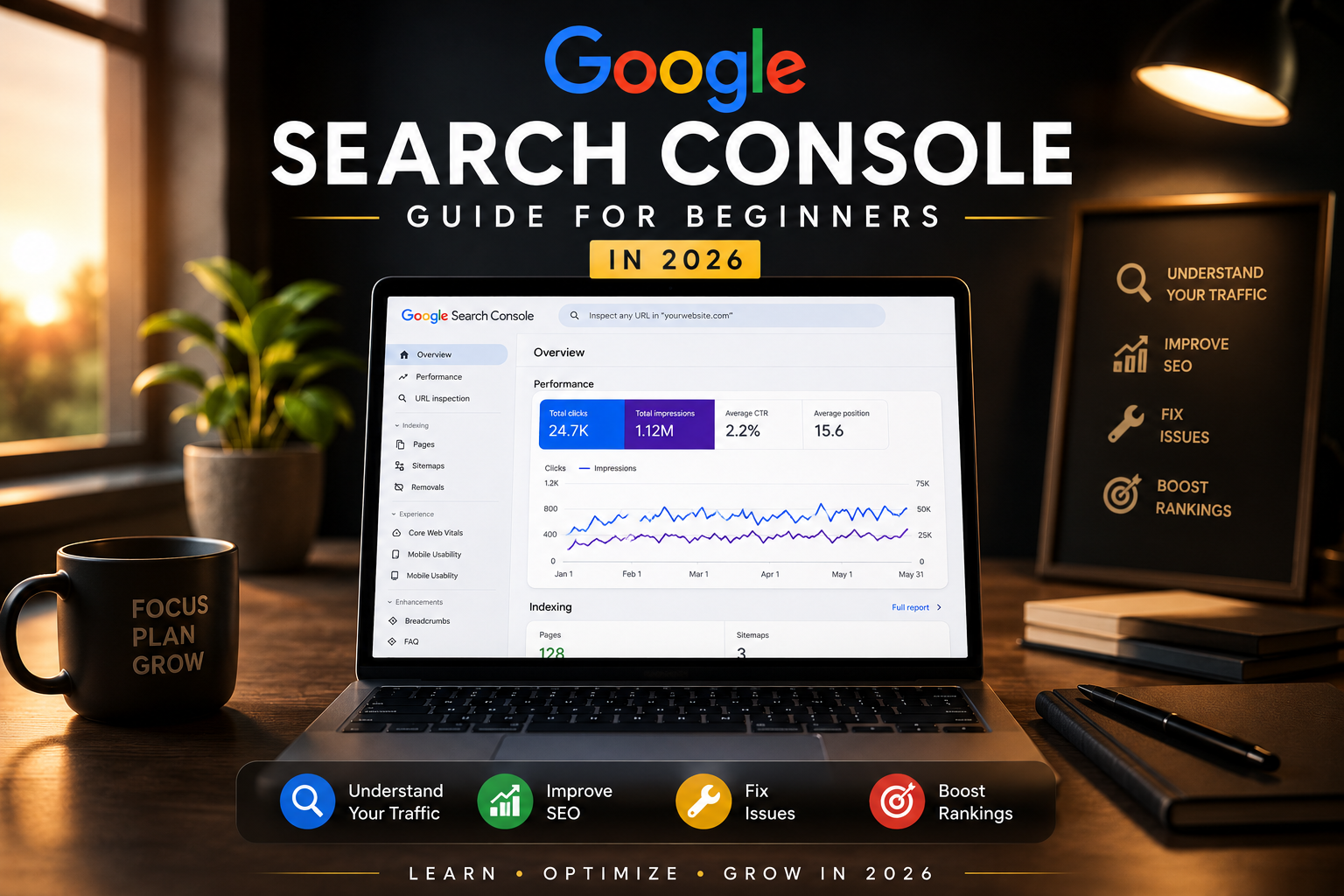
Google Search Console Guide for Beginners in 2026 is one of those topics I wish someone had explained to me properly when I first started working on websites.

Table of Contents
- What Is Google Search Console?
- Why Beginners Should Use Google Search Console in 2026
- How to Set Up Google Search Console
- How to Submit Sitemap in Google Search Console
- Understanding the Performance Report
- How to Check If a Page Is Indexed
- Common Indexing Messages Explained
- Common Google Search Console Mistakes
- Weekly Search Console Routine
- FAQs
What Is Google Search Console?
Google Search Console is a free tool from Google that helps website owners check how their website is performing in Google Search.
For beginners, the easiest way to understand it is this: Google Search Console is like a report card for your website.
It tells you important things like:
- Which pages are indexed on Google
- Which pages are not indexed
- What keywords people use to find your website
- How many clicks your website receives from Google Search
- How many times your pages appear in search results
- Whether your sitemap is submitted correctly
- If Google found errors on your website
- Whether your website has mobile usability or page experience problems
You can open the official tool here: Google Search Console.
If you are also using WordPress, you should connect it with a good SEO plugin. You can also read our guide on Best WordPress Plugins for Beginners in 2026 to choose useful plugins for your website.
Google Search Console Guide for Beginners in 2026: Why This Tool Matters
In 2026, blogging is more competitive than before. You cannot just publish an article and hope Google will automatically rank it.
Many beginners face problems like:
- Articles not showing on Google
- Pages discovered but not indexed
- Low impressions
- No clicks even after publishing many posts
- Sitemap errors
- Duplicate title or indexing issues
- Slow ranking progress
Without Google Search Console, you are mostly guessing. With Search Console, you can see real data directly from Google.

For example, if you publish an article and it gets impressions but no clicks, that means Google is showing it somewhere, but users are not clicking. In that case, you may need to improve your SEO title and meta description.
If you want to improve your article writing style, you can also read our detailed guide on How to Write SEO-Friendly Blog Posts in 2026.
How to Set Up Google Search Console
Setting up Google Search Console is not difficult, but beginners often get confused during verification. Here is the simple process.
Step 1: Open Google Search Console
Go to the official Google Search Console website and sign in with your Google account.
If possible, use the same Google account that you use for Google Analytics, AdSense, and your website tools. It makes management easier later.
Google Search Console Guide for Beginners in 2026: Why This Tool Matters
After opening Search Console, you will see two property options:
- Domain Property
- URL Prefix Property
Domain Property tracks all versions of your website, including www, non-www, http, and https.
URL Prefix Property tracks only the exact URL you enter.
For most beginners, URL Prefix is easier because it can be verified through HTML tag, Google Analytics, Google Tag Manager, or an SEO plugin.
For example, if your website opens as:
https://example.com/Then add the exact same version in Search Console.
Do not add the wrong version like http://example.com/ if your actual website uses HTTPS.
Step 3: Verify Website Ownership
Google needs to confirm that you own the website.
Common verification methods include:
- HTML file upload
- HTML tag
- Google Analytics
- Google Tag Manager
- DNS record
For WordPress users, the HTML tag method is usually simple. If you are using Rank Math or Yoast SEO, you can paste the verification code inside the plugin settings.
One mistake I have seen beginners make is pasting the full meta tag in a field where only the code is required. So always check whether your SEO plugin asks for the full tag or only the content value.
If your WordPress setup is new, you may also find this guide helpful: How to Install WordPress on cPanel Step by Step.
How to Submit Sitemap in Google Search Console
After verifying your website, the next important step is submitting your sitemap.
A sitemap is a file that tells Google about the important pages and posts on your website.
For most WordPress websites using Rank Math, the sitemap URL usually looks like this:
https://yourdomain.com/sitemap_index.xmlTo submit your sitemap:
- Open Google Search Console
- Click on Sitemaps
- Enter your sitemap URL
- Click Submit
You can also read Google’s official sitemap help page here: Google Sitemap Documentation.
Submitting a sitemap does not guarantee instant indexing, but it helps Google discover your content more easily.
If your website is slow or not properly optimized, indexing and ranking can also be affected. For speed improvement, check our guide on How to Speed Up WordPress Website in 2026.
Understanding the Performance Report
The Performance report is one of the most useful parts of Google Search Console.
You can find it by going to:
Google Search Console → Performance → Search ResultsHere you will see four important metrics:
Total Clicks
Clicks show how many people clicked your website from Google Search.
If your page appears in Google and someone clicks it, that counts as one click.
Total Impressions
Impressions show how many times your website appeared in Google Search results.
For new websites, impressions usually come before clicks. So if you are getting impressions but no clicks, do not panic. It means Google has started showing your page somewhere.
Average CTR
CTR means click-through rate.
If your page gets many impressions but very few clicks, your title may not be attractive enough.
For example, this title is too simple:
SEO GuideThis title is better:
SEO Guide for Beginners: Simple Steps to Rank Your First Blog PostThe second title is more clear, more helpful, and more clickable.
Average Position
Average position shows where your website appears in Google Search on average.
Do not take this number too emotionally. A page can rank position 8 for one keyword and position 45 for another. Search Console shows an average, so use it as a guide.
You can learn more from Google’s official performance report guide here: Search Console Performance Report.
How to Find Keywords in Google Search Console
One of the best ways to use Search Console is to find keywords your website is already getting impressions for.
Go to:
Performance → Search Results → QueriesHere you will see search terms people used before your website appeared in Google.
For example, if you wrote an article about WordPress speed, Search Console may show queries like:
- How to speed up WordPress website
- WordPress website slow fix
- Improve Core Web Vitals WordPress
- Best cache plugin for WordPress
These queries are very useful. You can update your article and add missing sections based on real searches.
For example, if your article is getting impressions for Core Web Vitals, you can improve it by reading our guide on How to Improve Core Web Vitals in WordPress.
How to Check If a Page Is Indexed
This is one of the most important things beginners want to know.
To check if your page is indexed:
- Copy the full URL of your article
- Open Google Search Console
- Paste the URL in the top inspection bar
- Press Enter
- Wait for the result
If your page is indexed, Search Console will show that the URL is on Google.
If it is not indexed, Search Console may show a reason.
You can also read Google’s official URL Inspection guide here: URL Inspection Tool Help.
Common Indexing Messages Explained
Beginners often get worried when they see indexing messages. Let’s explain the common ones in simple words.
Discovered, Currently Not Indexed
This means Google knows about your URL but has not crawled it yet.
This can happen with new websites, weak internal linking, or too many newly published pages.
What you can do:
- Add internal links from older posts
- Make sure the page is in your sitemap
- Improve the content quality
- Avoid publishing thin content
- Request indexing after checking the page
Crawled, Currently Not Indexed
This means Google visited your page but decided not to index it at that time.
This can happen when the content is too thin, too generic, duplicated, or not useful enough compared to other pages already available on Google.
To improve the page:
- Add personal experience
- Add real examples
- Improve headings
- Add FAQs
- Remove repeated text
- Add helpful images
- Add internal links
If you are struggling with content quality, read this guide: Common WordPress Mistakes Beginners Should Avoid in 2026.
Excluded by Noindex Tag
This means your page has a noindex tag, so Google is not allowed to index it.
In WordPress, this can happen because of SEO plugin settings. Open the post, check Rank Math or Yoast settings, and make sure the page is set to index.
Page With Redirect
This means the URL redirects to another URL.
This is not always a problem. For example, if your old URL redirects to a new URL properly, it may be fine.
How to Request Indexing in Google Search Console
After publishing a new article or updating an old article, you can request indexing.
Steps:
- Copy your article URL
- Paste it in the URL Inspection tool
- Click Test Live URL
- If everything is okay, click Request Indexing
Request indexing does not mean instant ranking. It only tells Google that your page is ready to be crawled.
Do not keep requesting indexing again and again without improving the content. If Google already crawled your page but did not index it, improve the page first.
How Google Search Console Helps With AdSense Approval
Google Search Console is also useful if you are preparing your website for Google AdSense approval.
AdSense approval depends on many things like content quality, policy pages, navigation, user experience, and website trust. Search Console helps you check whether your important pages are visible on Google.
Before applying for AdSense, check that these pages are indexed or at least accessible:
- Homepage
- About Us page
- Contact page
- Privacy Policy page
- Disclaimer page
- Main blog posts
You should also make sure your website has helpful content. If you need content ideas, check this article: How to Increase Website Traffic in 2026.
You can also read Google’s official AdSense eligibility information here: Google AdSense Eligibility Requirements.
Common Google Search Console Mistakes Beginners Make
1. Checking Data Too Early
Search Console is not real-time. If you published an article today, do not expect full data tomorrow.
Sometimes it takes days or weeks before you see useful data.
2. Thinking Sitemap Guarantees Indexing
A sitemap helps Google discover your pages, but it does not force Google to index them.
Your content still needs to be useful, original, and properly linked.
3. Ignoring Low CTR
If impressions are high but clicks are low, your title and meta description may need improvement.
Improving CTR can sometimes bring more traffic without writing a new article.
4. Publishing Thin Content
Short and generic articles usually struggle.
Try to add real examples, screenshots, personal experience, step-by-step guidance, and practical tips.
5. Not Using Internal Links
Internal links help Google understand your website structure.
For example, this article can naturally link to:
- How to Rank a New WordPress Website on Google in 2026
- Best Free SEO Tools for Bloggers in 2026
- How to Create a Fast WordPress Website Without Coding in 2026
- How to Optimize Images for WordPress in 2026
How Bloggers Can Use Search Console for Content Ideas
Google Search Console is not only for checking errors. It is also a very useful content planning tool.
Here is a simple method:
- Open the Performance report
- Click on Queries
- Find keywords with high impressions and low clicks
- Open the related page
- Improve the title, headings, and missing sections
For example, if your page is getting impressions for “WordPress image optimization,” but your article only has a small paragraph about images, you can create a full supporting article or improve the existing one.
You can also use tools like Google Trends, Google Keyword Planner, and Ahrefs Webmaster Tools for more keyword research.
Weekly Google Search Console Routine for Beginners
You do not need to check Search Console every hour. That only creates stress.
For a beginner blog, checking once or twice a week is enough.
Simple Weekly Routine
- Monday: Check indexing issues
- Wednesday: Check queries and impressions
- Friday: Update one old article based on Search Console data
This simple habit can improve your website slowly and naturally.
Over time, you will understand which topics are working, which articles need improvement, and which pages Google is ignoring.
Best Tools to Use With Google Search Console
Google Search Console is powerful, but you can combine it with other tools for better results.
- Google Analytics for user behavior tracking
- PageSpeed Insights for speed testing
- Rank Math SEO Plugin for WordPress SEO
- Yoast SEO Plugin for SEO settings
Final Thoughts on Google Search Console Guide for Beginners in 2026
Google Search Console may look confusing at first, but once you start using it regularly, it becomes one of the most useful tools for your website.
The main thing is to stay patient and understand the data properly. Do not panic if your articles are not indexed immediately or if impressions are low in the beginning.
Instead of checking rankings every hour, focus on improving your content, fixing indexing issues, and understanding what users are searching for.
For beginners in 2026, Google Search Console is no longer optional. Whether you are running a blog, affiliate website, AdSense site, or business website, this tool helps you understand how Google sees your content.
Start with the basics:
- Verify your website
- Submit your sitemap
- Inspect important URLs
- Track impressions and clicks
- Improve content using real search data
Once you build the habit of checking Search Console regularly, SEO starts making much more sense.
FAQs About Google Search Console Guide for Beginners in 2026
Is Google Search Console free?
Yes, Google Search Console is completely free and available for all website owners.
Does Google Search Console help improve SEO?
Yes, it helps you identify indexing issues, keyword opportunities, performance problems, and technical SEO errors.
How long does indexing take in Google Search Console?
Indexing time can vary. Some pages are indexed within hours, while others may take days or weeks depending on website quality and crawl priority.
Should beginners use Google Search Console?
Yes, it is one of the best free SEO tools for beginners who want to understand how their website performs on Google.
Can Google Search Console help with AdSense approval?
Indirectly, yes. It helps you monitor indexing and website visibility, which are important for a healthy and discoverable website.

Askwps is a technology and blogging website that shares helpful guides about WordPress, SEO, web hosting, blogging, website speed optimization, and online tools. Our goal is to provide simple and practical tutorials for beginners and website owners.