
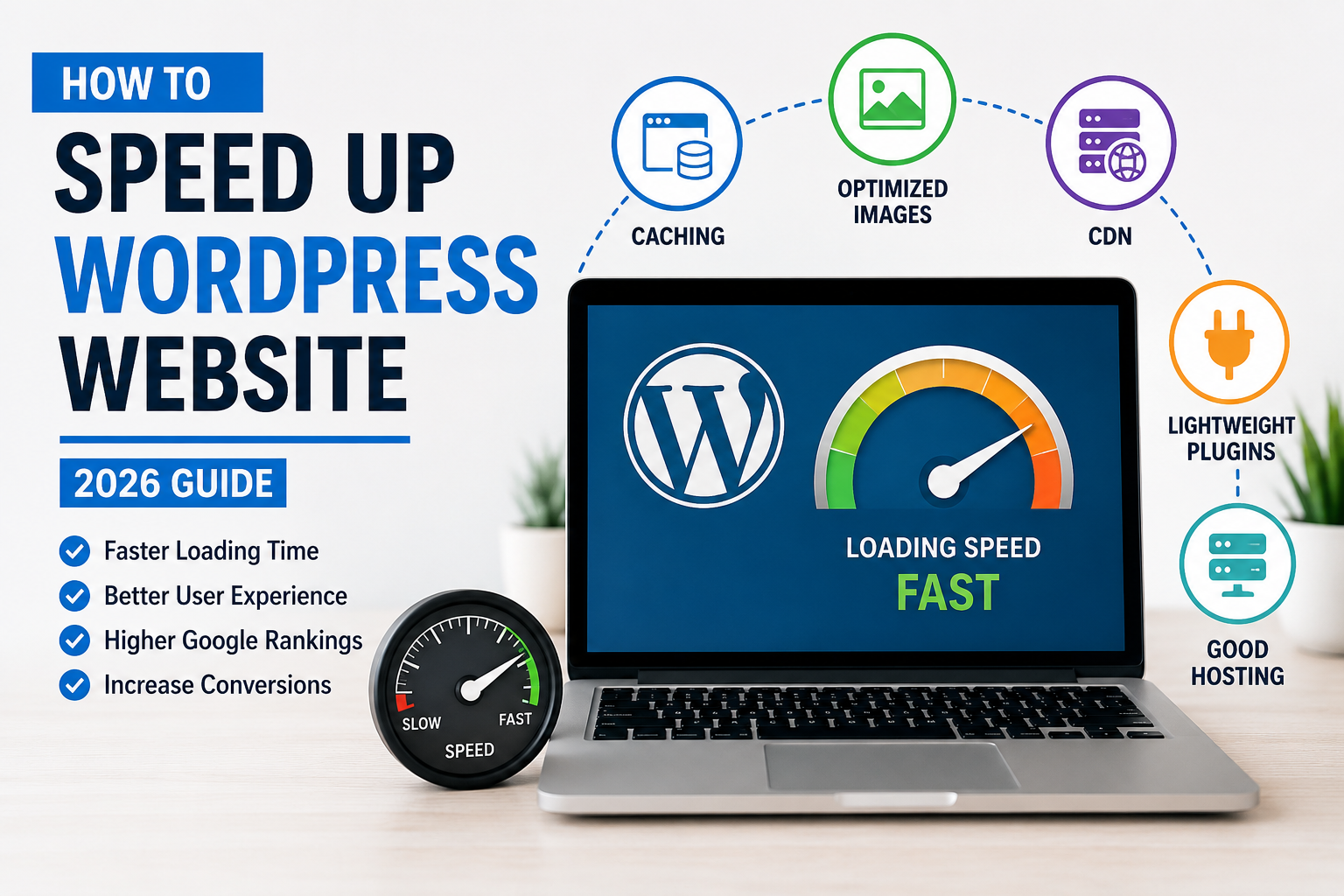
How to Speed Up WordPress Website in 2026 (Beginner Friendly Guide)
A few months ago, I opened one of my WordPress websites on mobile data and honestly thought the internet had stopped working. The homepage took forever to load. Images appeared one by one, and clicking on pages felt painfully slow.
At first, I blamed my hosting company. Then I blamed WordPress itself. But after spending time testing plugins, optimizing images, and fixing some beginner mistakes, I realized most slow WordPress websites are actually suffering from small problems that stack together.
If your website feels slow, you are definitely not alone. I have personally made almost every speed mistake possible — using heavy themes, uploading huge images directly from my phone, installing too many plugins, and ignoring caching completely.
The good news is that you do not need to be a developer to fix it.
If you are searching for how to speed up WordPress website performance without technical knowledge, this beginner-friendly guide will help you step by step.
In this guide, I will show you the exact beginner-friendly methods I personally use to speed up WordPress websites in 2026.
Why Website Speed Matters More Than Ever in 2026
People have become impatient online. If your website takes 5 to 6 seconds to load, many visitors will simply leave.
I noticed this on one of my small blogs. Traffic was coming from Google, but visitors were not staying long. After improving loading speed, pages started opening much faster, and users stayed longer on the site.
Website speed also affects:
- User experience
- Google rankings
- AdSense approval chances
- Mobile performance
- Bounce rate
Even a simple WordPress blog feels more professional when it loads quickly.
How to Speed Up WordPress Website Step by Step
Before making changes randomly, it is better to follow a simple optimization process.
- Test your current speed
- Use better hosting
- Install a lightweight theme
- Enable caching
- Optimize images
- Remove useless plugins
- Use Cloudflare CDN
- Clean your database
- Keep WordPress updated
Check Your Current Website Speed First
Before changing anything, test your website speed.
I personally use these free tools:
- Google PageSpeed Insights
- GTmetrix
- Pingdom Website Speed Test
These tools show what is slowing your website down.
Do not panic if your score looks terrible in the beginning. One of my websites scored below 40 when I first checked it.
Choose Fast and Reliable Hosting
This is probably the biggest lesson I learned.
Cheap hosting may save money at first, but slow servers can ruin website speed no matter how much optimization you do later.
I once moved a WordPress site from low-quality shared hosting to a better provider, and loading time improved instantly without touching anything else.
Some beginner-friendly hosting providers people commonly use include:
- Hostinger
- SiteGround
- Cloudways
- Namecheap EasyWP
If your website is extremely slow even after optimization, hosting could be the real issue.
Use a Lightweight WordPress Theme
One mistake beginners often make is installing flashy themes with too many animations and unnecessary effects.
I used one of those themes years ago because the demo looked beautiful. The problem was that the actual website became painfully slow.
Now I prefer lightweight themes like:
- Astra
- GeneratePress
- Kadence
- Hello Elementor
These themes are cleaner and much faster.
Install a Caching Plugin
If you only do one thing from this guide, install caching properly.
Caching basically helps your website load faster by serving saved versions of pages instead of generating everything from scratch every time.
I personally noticed one of the biggest speed improvements after enabling caching.
Some good caching plugins are:
- LiteSpeed Cache
- WP Rocket
- W3 Total Cache
- WP Super Cache
How I Set Up LiteSpeed Cache
- Go to Plugins → Add New
- Search for LiteSpeed Cache
- Install and activate it
- Enable page caching
- Turn on image optimization
- Enable browser caching
For most beginners, default settings already improve speed a lot.
Optimize Images Before Uploading
This is another mistake I made repeatedly.
I used to upload full-resolution photos directly from my phone camera. Some images were over 5MB.
That destroys loading speed.
Now I compress every image before uploading.
Tools I personally use:
- TinyPNG
- Squoosh
- ShortPixel
- Imagify
I also try to use WebP images whenever possible because they are much smaller in size.
Learning how to speed up WordPress website performance also means reducing unnecessary image sizes and scripts.
Remove Unnecessary Plugins
Many beginners install plugins for everything.
I once had more than 30 plugins active on a simple blog. Half of them were unnecessary.
Every extra plugin can increase load time, especially poorly coded ones.
Check your installed plugins and remove:
- Unused plugins
- Duplicate functionality plugins
- Heavy page builder add-ons you do not need
- Inactive plugins sitting for no reason
Keep your WordPress setup clean and simple.
Use a Content Delivery Network (CDN)
A CDN stores copies of your website on multiple servers worldwide.
This helps visitors load your website faster from different countries.
I personally started using Cloudflare on one of my blogs, and mobile performance improved noticeably.
Cloudflare has a useful free plan for beginners.
Basic Cloudflare Benefits
- Faster loading speed
- Extra security
- DDoS protection
- Better global performance
Enable Lazy Loading
Lazy loading means images only load when users scroll down to them.
This reduces initial page loading time.
Most modern caching plugins already include lazy loading features.
WordPress itself also supports basic lazy loading now, which helps beginners automatically.
Update WordPress Regularly
I ignored updates for a long time because I was afraid something might break.
But outdated WordPress versions, plugins, and themes can actually slow down your website and create security risks.
Now I regularly update:
- WordPress core
- Themes
- Plugins
Just remember to keep backups before major updates.
Database Cleanup Helps More Than You Think
Over time, WordPress databases collect junk data like:
- Post revisions
- Spam comments
- Deleted plugin leftovers
- Auto drafts
I cleaned one old database and noticed the admin dashboard became faster instantly.
You can clean databases using:
- WP-Optimize
- Advanced Database Cleaner
Avoid Heavy Homepage Designs
Many beginners try to make their homepage look like a giant news portal with sliders, animations, popups, videos, and moving widgets everywhere.
I tried that too once.
The result was terrible loading speed.
Simple websites usually perform better.
A clean layout with readable text and optimized images feels faster and more professional.
Common WordPress Speed Mistakes Beginners Make
Installing Too Many Optimization Plugins
Ironically, too many “speed plugins” can slow websites down.
Keep only the important ones.
Ignoring Mobile Performance
Many websites load fine on desktop but become slow on phones.
Always test mobile speed too.
Uploading Huge Videos Directly to WordPress
I strongly recommend uploading videos to YouTube and embedding them instead.
Direct video uploads consume server resources quickly.
Using Pirated Themes or Plugins
Besides security risks, many nulled plugins contain hidden scripts that slow websites badly.
Stick to trusted sources.
Real Improvements I Personally Noticed
Here are the changes that gave me the biggest real-world improvements:
- Switching to lightweight themes
- Compressing all images
- Using LiteSpeed Cache
- Moving to better hosting
- Removing unnecessary plugins
- Using Cloudflare CDN
I did not achieve perfect speed overnight. It took testing and patience.
But even small improvements made websites feel much smoother.
Once you understand how to speed up WordPress website performance correctly, maintaining good speed becomes much easier.
You can also test your website performance using Google PageSpeed Insights to find speed issues and optimization suggestions.
Final Thoughts
Honestly, WordPress speed optimization feels confusing in the beginning because every tool gives different suggestions.
But after working on multiple websites, I realized you do not need complicated technical tricks to make a site faster.
Most speed problems come from basic things like heavy themes, poor hosting, oversized images, and too many plugins.
Start with the simple fixes first. Even small improvements can make your website feel dramatically better for visitors.
You can also read our How to Install WordPress on cPanel guide if you are still setting up your WordPress website.

Askwps is a technology and blogging website that shares helpful guides about WordPress, SEO, web hosting, blogging, website speed optimization, and online tools. Our goal is to provide simple and practical tutorials for beginners and website owners.