
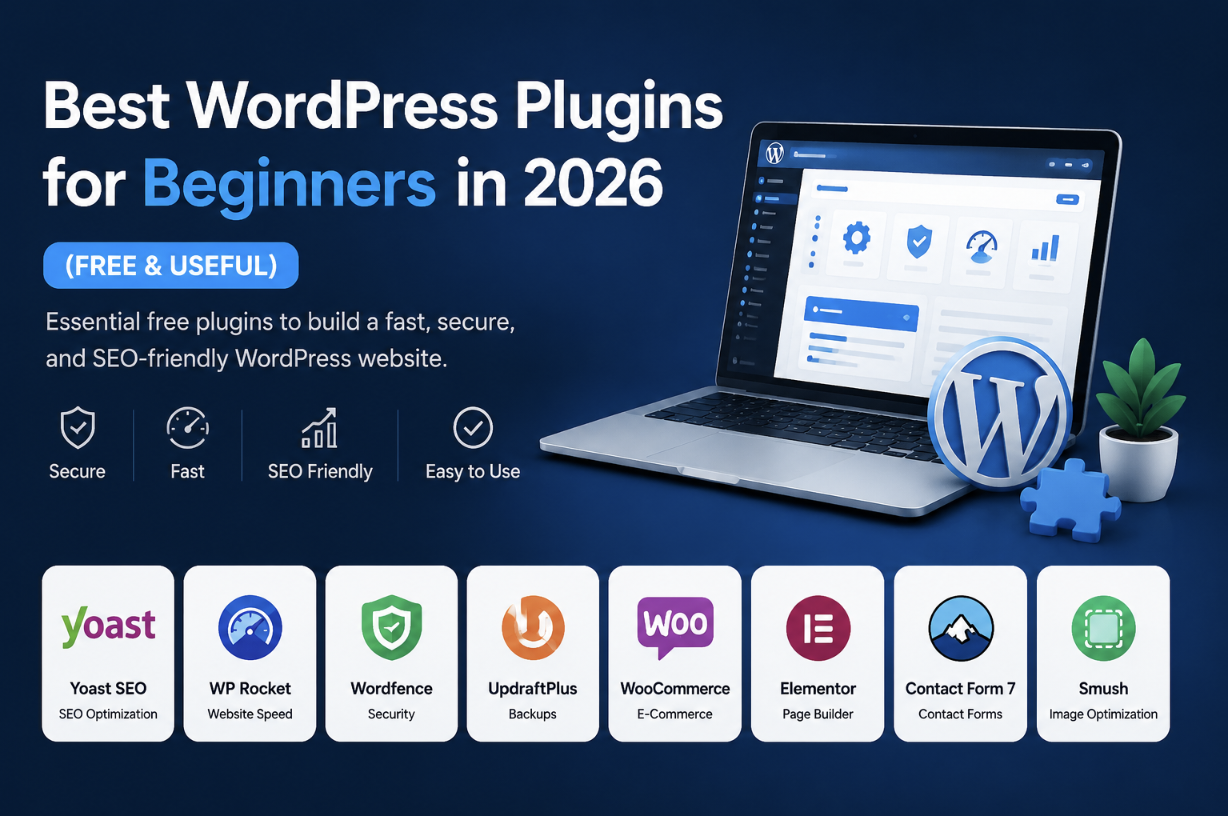
Best WordPress Plugins for Beginners in 2026 (Free and Useful)
The first time I installed WordPress, I got excited and made a classic beginner mistake — I installed almost every plugin that looked useful.
SEO plugin? Installed.
Security plugin? Installed.
Five different page builders? Installed.
By the end of the day, my website became slow, confusing, and honestly a mess to manage.
That experience taught me something important: WordPress plugins are incredibly useful, but choosing the right ones matters a lot.
After working on different WordPress websites over the years, I slowly figured out which plugins actually help beginners and which ones just add unnecessary problems.
If you are new to WordPress, this guide will save you a lot of time.
These are the best WordPress plugins for beginners in 2026 that I personally found useful, simple to use, and beginner friendly.
Why Choosing the Right Plugins Matters
WordPress itself is powerful, but plugins are what really turn a basic website into something useful.
You can add:
- SEO tools
- Security protection
- Website backups
- Speed optimization
- Contact forms
- Image compression
- Social sharing features
The problem is that beginners often install too many plugins without understanding what they actually do.
I made that mistake myself. One of my websites had over 35 plugins active. The dashboard became slow, updates became stressful, and conflicts started appearing.
Now I prefer using only trusted and useful plugins.
Best WordPress Plugins for Beginners in 2026
These plugins are simple enough for beginners but still powerful enough for real websites.
1. Rank Math SEO
If you care about Google rankings or AdSense approval, you will probably need an SEO plugin.
I personally switched to Rank Math after using other SEO plugins for years, and honestly it felt much easier for beginners.
What I like most is the built-in SEO score system. It helps beginners understand things like:
- Keyword usage
- Meta descriptions
- Internal links
- Image alt text
- SEO titles
Even if you are completely new to blogging, Rank Math guides you step by step.
Useful Features
- Easy SEO setup wizard
- Schema support
- XML sitemap generation
- Keyword optimization tips
- Google Search Console integration
I personally use Rank Math on small blogs because it keeps SEO management simple.
2. LiteSpeed Cache
Website speed matters a lot in 2026.
I once ignored caching completely and wondered why my website loaded so slowly on mobile devices.
After installing LiteSpeed Cache, the difference was immediately noticeable.
This plugin helps:
- Improve loading speed
- Optimize images
- Enable caching
- Reduce page load time
- Improve Core Web Vitals
The free version is already powerful enough for most beginner websites.
Beginner Tip
Do not randomly enable every setting at once. Start with default settings first.
3. WPForms
Almost every website needs a contact form.
I used to think creating forms in WordPress would require coding, but WPForms made it surprisingly simple.
The drag-and-drop builder is beginner friendly and works well for:
- Contact forms
- Feedback forms
- Email collection
- Simple surveys
You can create your first contact form in just a few minutes.
4. UpdraftPlus
I learned the importance of backups the hard way.
One plugin update broke an old website completely, and I had no backup.
I spent hours trying to recover files manually.
Since then, I always install a backup plugin immediately.
UpdraftPlus is one of the easiest backup plugins for beginners.
What It Does
- Creates website backups
- Restores websites easily
- Supports Google Drive backups
- Schedules automatic backups
Even beginners can restore a broken site without technical knowledge.
5. Wordfence Security
Many beginners ignore website security until something bad happens.
I once noticed suspicious login attempts on a small blog, and that experience made me take WordPress security more seriously.
Wordfence helps protect websites from:
- Brute force attacks
- Malware
- Fake login attempts
- Suspicious traffic
The free version already offers good basic protection.
6. Smush
Large images are one of the biggest reasons WordPress websites become slow.
I used to upload full-size photos directly from my phone camera without compressing them.
That was a terrible idea.
Smush automatically compresses images without making them look bad.
This helps websites load faster while keeping image quality decent.
Why Beginners Like It
- Automatic image optimization
- Simple settings
- Works in the background
- Improves website speed
7. Elementor
Some beginners want more control over website design without touching code.
That is where Elementor becomes useful.
I personally used Elementor on landing pages and simple business websites because it allows visual editing.
You can build pages using drag and drop blocks.
However, there is one important lesson I learned:
Do not overload pages with too many animations or fancy effects because that can slow websites down.
8. MonsterInsights
Understanding website visitors is important.
MonsterInsights helps connect WordPress with Google Analytics without complicated setup.
Beginners can easily see:
- Website traffic
- Popular pages
- User behavior
- Traffic sources
I personally like how simple the reports look inside the WordPress dashboard.
9. Really Simple SSL
SSL setup used to confuse many beginners.
Mixed content warnings, insecure pages, and redirect problems were common.
Really Simple SSL makes HTTPS setup much easier.
For beginner websites, it can save a lot of frustration.
10. Akismet Anti-Spam
If your blog allows comments, spam comments can quickly become annoying.
I once woke up to hundreds of fake comments promoting random websites.
Akismet helps automatically block spam comments before they appear publicly.
It quietly works in the background and reduces moderation work.
Plugins Beginners Should Avoid Installing Too Early
Not every plugin is necessary in the beginning.
Here are some things beginners often overdo:
- Installing multiple SEO plugins together
- Using too many optimization plugins
- Adding unnecessary page builder add-ons
- Installing unknown plugins from random websites
More plugins do not automatically mean a better website.
How Many Plugins Should a Beginner Use?
There is no perfect number.
I have seen fast websites with 20 plugins and slow websites with only 5 plugins.
The real goal is using quality plugins instead of quantity.
For most beginner websites, keeping around 8 to 15 useful plugins is usually enough.
Simple Plugin Setup Tips for Beginners
Only Install Plugins You Actually Need
Before installing a plugin, ask yourself whether it solves a real problem.
Keep Plugins Updated
Outdated plugins can create security risks and compatibility problems.
Delete Unused Plugins
Inactive plugins still take up space and sometimes create issues.
Check Plugin Reviews
I always check ratings, update frequency, and active installations before installing new plugins.
My Personal Beginner Plugin Setup
If I start a fresh beginner WordPress blog today, my basic setup would probably include:
- Rank Math SEO
- LiteSpeed Cache
- WPForms
- UpdraftPlus
- Wordfence
- Smush
This setup keeps websites lightweight while covering the important basics.
Common Mistakes Beginners Make With Plugins
Installing Pirated Plugins
Free “nulled” plugins from random websites are risky.
Some contain malware or hidden scripts that damage websites.
Ignoring Website Speed
Some plugins add heavy scripts that slow websites down badly.
Always test speed after installing something new.
Using Plugins With Similar Functions
Using multiple cache plugins or multiple SEO plugins together often creates conflicts.
Final Thoughts
Honestly, plugins are one of the reasons WordPress became so popular.
They make difficult tasks easier even for complete beginners.
But after years of using WordPress, I realized that keeping things simple usually works best.
You do not need dozens of plugins to build a good website.
Start with trusted essentials first, learn how they work, and slowly improve your website over time.
If you are still setting up your website, you can also read our How to Install WordPress on cPanel guide.
You can also test your website speed using Google PageSpeed Insights to check performance and optimization suggestions.