
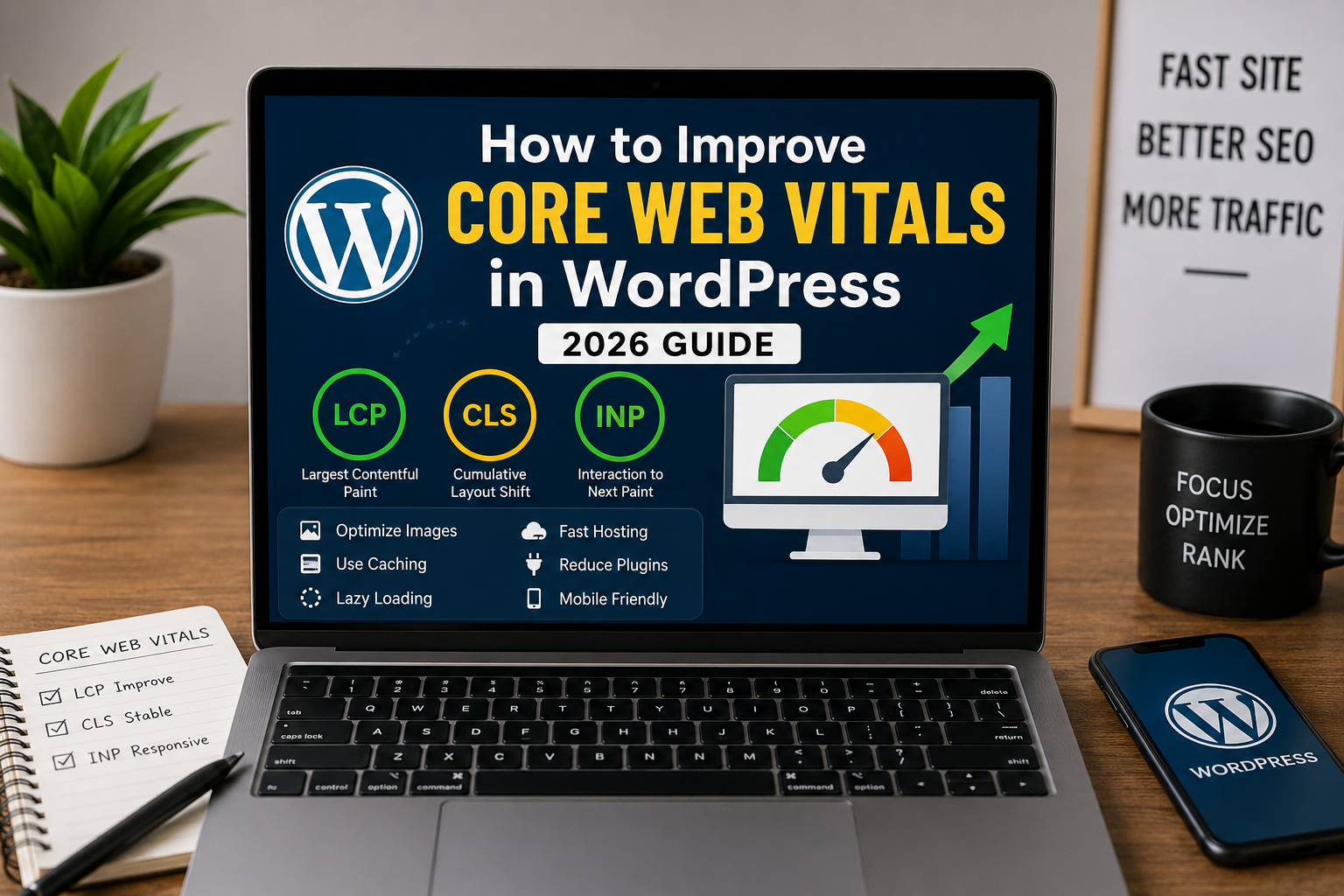
How to Improve Core Web Vitals in WordPress (2026 Guide)
I still remember the first time I saw a terrible Core Web Vitals report inside Google Search Console.
Almost every page on my website was marked “Poor.”
At first, I honestly had no idea what LCP, CLS, or INP even meant.
I only noticed one thing — my website felt slower than it should.
Pages loaded late on mobile devices, layouts shifted while scrolling, and sometimes buttons felt unresponsive.
The frustrating part was that I had already installed caching plugins and optimized images, but Google still complained about performance issues.
After spending time testing themes, plugins, hosting, image optimization, and caching settings, I finally understood something important:
Core Web Vitals are not about chasing perfect speed scores. They are mainly about improving real user experience.
If your website feels smooth, fast, stable, and responsive, your Core Web Vitals usually improve naturally.
This guide explains how to improve Core Web Vitals in WordPress in 2026 using beginner-friendly methods that actually make a difference.
What Are Core Web Vitals?
Core Web Vitals are performance metrics Google uses to measure user experience on websites.
They mainly focus on:
- Loading speed
- Visual stability
- Responsiveness
The three main Core Web Vitals are:
- LCP (Largest Contentful Paint)
- CLS (Cumulative Layout Shift)
- INP (Interaction to Next Paint)
Honestly, the names sound more complicated than the actual concepts.
Why Core Web Vitals Matter for WordPress Websites
I used to think Core Web Vitals only mattered for huge websites.
But even smaller blogs benefit from faster performance.
Good Core Web Vitals can help improve:
- User experience
- Mobile performance
- Bounce rate
- SEO rankings
- AdSense quality signals
Visitors simply enjoy fast websites more.
How to Improve Core Web Vitals in WordPress
After testing many optimization methods, I realized Core Web Vitals usually improve when you simplify and optimize the website properly.
- Use lightweight themes
- Optimize images
- Enable caching
- Reduce plugin overload
- Use fast hosting
- Improve mobile performance
- Enable lazy loading
- Use CDN services
Small improvements together can create a huge performance difference.
Choose a Lightweight WordPress Theme
This made one of the biggest improvements on my websites.
I used to use heavy themes filled with animations and effects.
The websites looked flashy, but performance suffered badly.
After switching to lightweight themes, speed improved immediately.
Themes I Personally Like for Performance
- GeneratePress
- Astra
- Kadence
- Blocksy
Simple themes usually load much faster.
You can also read our Best WordPress Themes guide for beginner-friendly options.
Optimize Images Properly
Large unoptimized images are one of the most common speed problems.
I personally used to upload massive screenshots and phone photos directly into WordPress.
That slowed pages badly.
Now I usually:
- Resize images before uploading
- Compress image files
- Use WebP format
- Add lazy loading
Image optimization alone can improve loading speed significantly.
You can also explore our Image Optimization guide for detailed tips.
Use a Good Caching Plugin
Caching plugins can dramatically improve WordPress performance.
I personally use LiteSpeed Cache on several websites because it combines:
- Page caching
- Image optimization
- Lazy loading
- CSS optimization
- JavaScript optimization
Other popular caching plugins include:
- WP Rocket
- W3 Total Cache
- WP Super Cache
Even basic caching improvements can make websites feel much smoother.
Reduce Plugin Overload
I made the mistake of installing too many plugins on one of my older blogs.
The website became slow, unstable, and difficult to manage.
More plugins increase:
- Server requests
- CSS loading
- JavaScript execution
- Database usage
Now I try to keep only necessary plugins installed.
Simple websites usually perform better.
Use Better Hosting
Honestly, poor hosting can destroy Core Web Vitals even if everything else is optimized properly.
I learned this after moving from extremely cheap hosting to a more reliable provider.
The speed improvement was noticeable immediately.
Good hosting usually provides:
- Better server performance
- Improved uptime
- Faster response times
- Better caching compatibility
Hosting quality matters more than many beginners realize.
Enable Lazy Loading
Lazy loading delays images and videos until visitors scroll near them.
This helps pages load faster initially.
Most modern WordPress websites already support lazy loading automatically, especially when using caching plugins.
I personally noticed mobile speed improvements after enabling proper lazy loading.
Improve Mobile Performance
Most visitors now browse websites using phones.
Sometimes websites feel fine on desktop but perform poorly on mobile devices.
I usually test:
- Mobile page speed
- Font readability
- Button responsiveness
- Layout stability
Simple mobile-friendly layouts often improve Core Web Vitals naturally.
Understand LCP, CLS, and INP Simply
LCP (Largest Contentful Paint)
This measures how quickly the main content loads.
Large images and slow hosting often hurt LCP.
CLS (Cumulative Layout Shift)
This measures visual stability.
If page elements suddenly move while loading, CLS becomes worse.
I personally fixed many CLS issues by defining image dimensions properly.
INP (Interaction to Next Paint)
This measures responsiveness when users interact with the website.
Heavy scripts and overloaded plugins often hurt responsiveness.
Use Google PageSpeed Insights
One of the easiest ways to test Core Web Vitals is using Google PageSpeed Insights.
This tool helps identify:
- Slow-loading elements
- Image problems
- Unused JavaScript
- Mobile performance issues
I personally check important pages regularly after major updates.
Use CDN Services
A CDN helps deliver website files faster to visitors from different locations.
I personally noticed performance improvements after using Cloudflare.
CDN services can help with:
- Faster loading
- Reduced server load
- Better global performance
- Additional security
Common Core Web Vitals Mistakes Beginners Make
Using Heavy Page Builders Everywhere
Complex layouts sometimes create unnecessary performance issues.
Uploading Huge Images
Large image files slow pages dramatically.
Installing Too Many Plugins
More plugins often increase resource usage.
Ignoring Mobile Optimization
Mobile experience matters more than ever now.
Simple Core Web Vitals Setup I Personally Use
If I launch a WordPress blog today, my optimization setup would probably include:
- Lightweight theme
- LiteSpeed Cache
- WebP images
- Cloudflare CDN
- Fast hosting
- Minimal plugins
This setup already creates strong performance improvements for most beginner blogs.
You can also read our Common WordPress Mistakes guide to avoid performance problems beginners often create accidentally.
What Helped Me Most With Core Web Vitals
Honestly, the biggest improvement came when I stopped trying random “speed hacks” and focused instead on simplifying the website.
Removing unnecessary clutter often improved performance more than complicated optimization tricks.
Fast clean websites usually provide the best experience naturally.
Final Thoughts
Learning how to improve Core Web Vitals in WordPress can feel overwhelming initially, especially when Google reports start showing strange performance warnings.
But honestly, most beginner websites improve significantly through simple optimizations like:
- Better themes
- Image optimization
- Good caching
- Fast hosting
- Cleaner layouts
You do not need perfect 100/100 scores everywhere.
You mainly need a website that feels fast, stable, and responsive for real visitors.
Once you focus on user experience first, Core Web Vitals usually improve naturally over time.

Askwps is a technology and blogging website that shares helpful guides about WordPress, SEO, web hosting, blogging, website speed optimization, and online tools. Our goal is to provide simple and practical tutorials for beginners and website owners.