
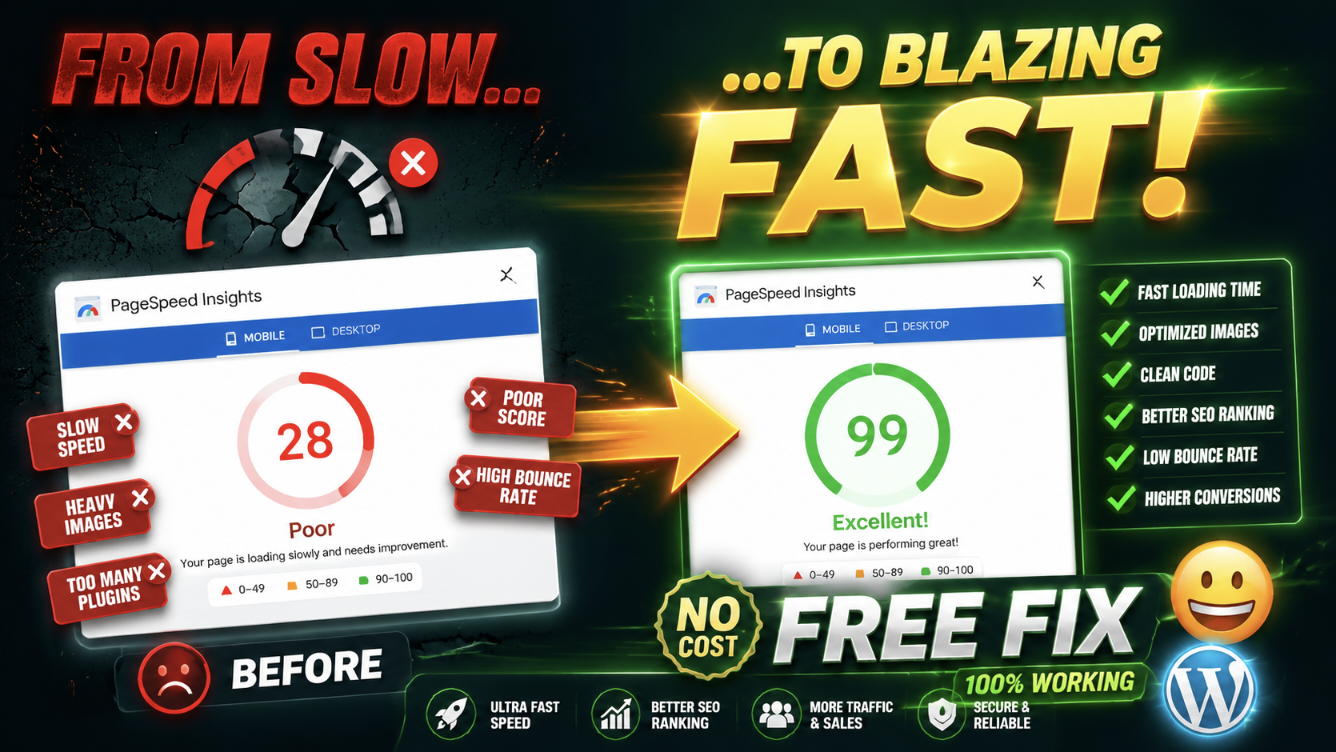
Fix slow WordPress website issues can be frustrating, especially when your pages take forever to load on mobile and desktop. I experienced this first-hand, and here’s how I solved it without spending money on expensive plugins.
That site loaded instantly.
That was the moment I realized the real problem was my own website.
And honestly, that feeling was frustrating.
I had spent weeks writing articles, designing the homepage, fixing SEO settings, and trying to make the site look professional. But none of that mattered if visitors left before the website even loaded properly.
So I started searching for solutions.
Most YouTube videos recommended expensive plugins, premium optimization tools, fancy hosting upgrades, and complicated technical tweaks.
But I did not want to spend hundreds of dollars just to fix a slow WordPress website.
So instead, I started testing things myself.
Some changes worked immediately.
Some completely failed.
And honestly… I made a few stupid mistakes during the process too.
This article is basically everything that actually helped me fix my slow WordPress website without expensive plugins.
Why My WordPress Website Became Slow
At first, I thought WordPress itself was the problem.
It was not.
The real issue was the way I had set up the website.
Looking back now, I had made almost every beginner mistake possible.
- Too many plugins
- Huge image files
- Heavy homepage design
- Poor caching setup
- Too many animations
- Unused plugins running in the background
Individually, these problems did not seem huge.
Together though? Disaster.
How to Fix Slow WordPress Website Without Expensive Plugins
The first thing I did was remove unnecessary plugins.
This alone made a noticeable difference.
At one point, I had plugins installed for things I barely even used.
One plugin added animations.
Another handled social sharing.
Another handled analytics.
Then I had duplicate plugins doing almost the same jobs.
Honestly, it became messy.
Now before installing any plugin, I usually ask myself:
“Do I actually need this?”
If the answer is no, I skip it.
You can also read:
Best WordPress Plugins for Beginners in 2026
How I Optimized Images Without Losing Quality
This was another massive issue.
I used to upload screenshots directly from my phone without resizing anything.
Some images were over 4MB.
Not great.
Large images quietly destroy website speed, especially on mobile devices.
I eventually started doing three simple things:
- Compressing images before upload
- Using WebP images
- Reducing oversized dimensions
I personally noticed mobile speed improved significantly after optimizing images properly.
I mainly used:
- ShortPixel
- TinyPNG
- LiteSpeed Cache image optimization
You can check image performance here:
And this internal guide may help too:
How to Optimize Images for WordPress
The Theme Change That Helped More Than I Expected
This surprised me honestly.
I originally used a heavy theme with sliders, animations, effects, and fancy homepage sections.
It looked impressive in demos.
But in real life?
The website felt heavy.
I eventually switched to GeneratePress.
The design became simpler, but the website instantly felt smoother.
That experience changed how I think about WordPress themes now.
Most visitors care more about speed and readability than flashy effects.
You can also check:
Best Free WordPress Themes for Bloggers in 2026
How LiteSpeed Cache Actually Helped Me
I ignored caching for months because it sounded too technical.
Big mistake.
Once I properly configured LiteSpeed Cache, the improvement became noticeable.
Especially on mobile.
The features that genuinely helped me:
- Page caching
- Lazy loading
- CSS optimization
- WebP support
- Browser caching
But here is something important beginners should understand:
A cache plugin alone will not magically fix a slow WordPress website.
You still need:
- Optimized images
- Lightweight themes
- Fewer plugins
- Clean homepage design
The Homepage Mistake That Quietly Slowed Everything Down
I used to think homepage sliders looked professional.
Honestly, they mostly slowed things down.
My homepage originally had:
- Large sliders
- Animations
- Moving effects
- Heavy widgets
After removing most of those elements, the website felt cleaner and loaded much faster.
Sometimes simpler really is better.
How I Tested My Website Speed
I mainly tested website speed using:
But honestly?
Real mobile testing helped me more.
I started opening my website on different phones and internet connections.
That gave me a much more realistic understanding of user experience.
The Hosting Lesson I Learned Late
At one point, I blamed everything except hosting.
Plugins.
Themes.
Images.
Everything.
Then I realized my hosting itself was struggling.
Moving to better hosting improved dashboard speed and page loading noticeably.
But honestly, hosting alone was not enough.
Proper website optimization still mattered.
You can also check:
How to Choose the Right WordPress Hosting for a New Blog
Things That Did NOT Help Me Much
Some things honestly wasted my time.
- Installing random “speed booster” plugins
- Adding unnecessary optimization scripts
- Using too many analytics tools
- Following overly technical YouTube tutorials blindly
Many tutorials make speed optimization sound extremely complicated.
But most improvements on my website came from basic cleanup.
How Plugins Affected My Website Speed
This part genuinely surprised me.
Some plugins quietly loaded scripts on every single page.
Even when those features were barely being used.
After cleaning unnecessary plugins, the dashboard became smoother almost immediately.
You can also read:
Common WordPress Mistakes Beginners Should Avoid
My Simple Speed Optimization Setup Today
If I started a fresh WordPress blog today, my setup would honestly stay pretty simple.
- GeneratePress theme
- LiteSpeed Cache
- Optimized WebP images
- Minimal plugins
- Clean homepage layout
- Decent hosting
That setup alone is enough for many beginner websites.
Common Beginner Mistakes That Slow Down WordPress
Installing Too Many Plugins
I did this myself.
Bad idea.
Uploading Huge Images
Massive images quietly destroy speed.
Using Heavy Themes
Fancy themes often load unnecessary scripts and effects.
Ignoring Mobile Performance
Most visitors browse on phones now.
Mobile speed matters a lot.
Using Too Many Homepage Effects
Animations and sliders often hurt performance more than they help.
FAQ About Fixing a Slow WordPress Website
Can plugins slow down WordPress?
Yes, especially badly coded or unnecessary plugins.
Do I need expensive plugins to improve speed?
No. Many speed improvements come from optimization habits rather than expensive tools.
Does image optimization really matter?
Absolutely. Large images are one of the biggest causes of slow WordPress websites.
Which cache plugin worked best for you?
LiteSpeed Cache worked very well for me on LiteSpeed hosting.
Can themes affect website speed?
Yes. Heavy themes with sliders and animations can noticeably slow down websites.
Final Thoughts
Looking back now, I honestly wasted too much time searching for “secret” speed optimization tricks.
Most of the real improvements came from simple changes.
Removing unnecessary plugins.
Optimizing images.
Using a lightweight theme.
Keeping the homepage simple.
That combination helped me fix my slow WordPress website far more than expensive tools ever did.
And honestly, once the website finally started loading smoothly on mobile devices… it genuinely felt satisfying.

Askwps is a technology and blogging website that shares helpful guides about WordPress, SEO, web hosting, blogging, website speed optimization, and online tools. Our goal is to provide simple and practical tutorials for beginners and website owners.